


You find a product photo with exactly the lighting you had in mind. Or a short video makes you stop scrolling because of one camera move. You know what you like. Putting it into words is the harder part.
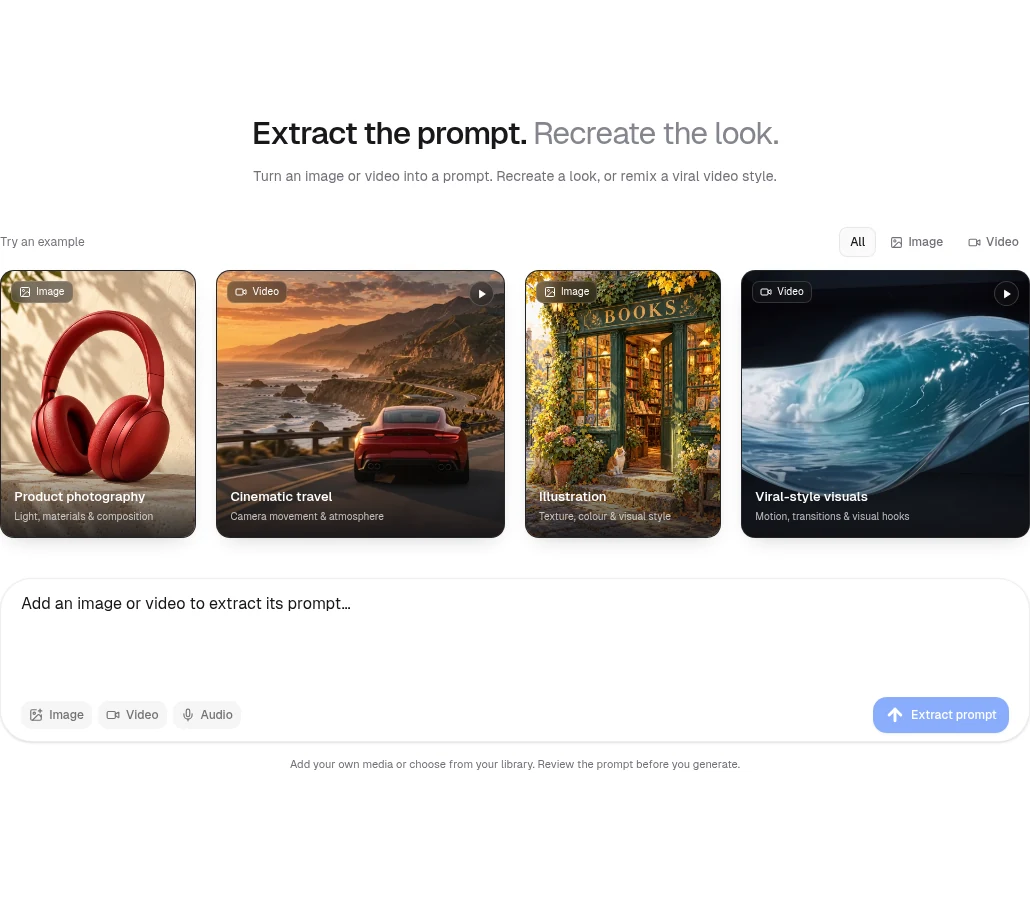
Creativly’s Prompt Extractor gives you a starting point. Add an image or video, then click Extract prompt to describe its subject, lighting, composition and style. Use that prompt to recreate an image, remix a viral video style, or change the parts that matter to you.
Here is how to go from a reference you like to a prompt you can actually use, with real image and video examples from the app.
Start with an image or video
- Choose your reference. Open Prompt Extractor and upload a photo or clip, choose an existing asset from your library, or click one of the examples. The Image and Video labels help you check what you have attached.
- Extract the prompt. Click Extract prompt. You will get a visual breakdown and a recreation prompt. For images, look for composition, materials and light. For video, check the camera movement and what changes during the shot too.
- Make the brief yours. Keep the details you like and change the rest. Ask for a different product, a new colour, another setting, or a simpler version of the scene. You can continue in the same conversation.
- Review before generating. Ask for an image or video generation plan. Check the proposed prompt, model and available settings, then approve it when you are happy. Extracting a description and generating a new result are separate steps; generations use credits.
Image to prompt: recreate the lighting and feel
Take this headphone photo. “Red headphones on a table” tells you what is in it, but misses most of what makes it work: the warm cream wall, porous stone, soft leaf shadows and close product framing.
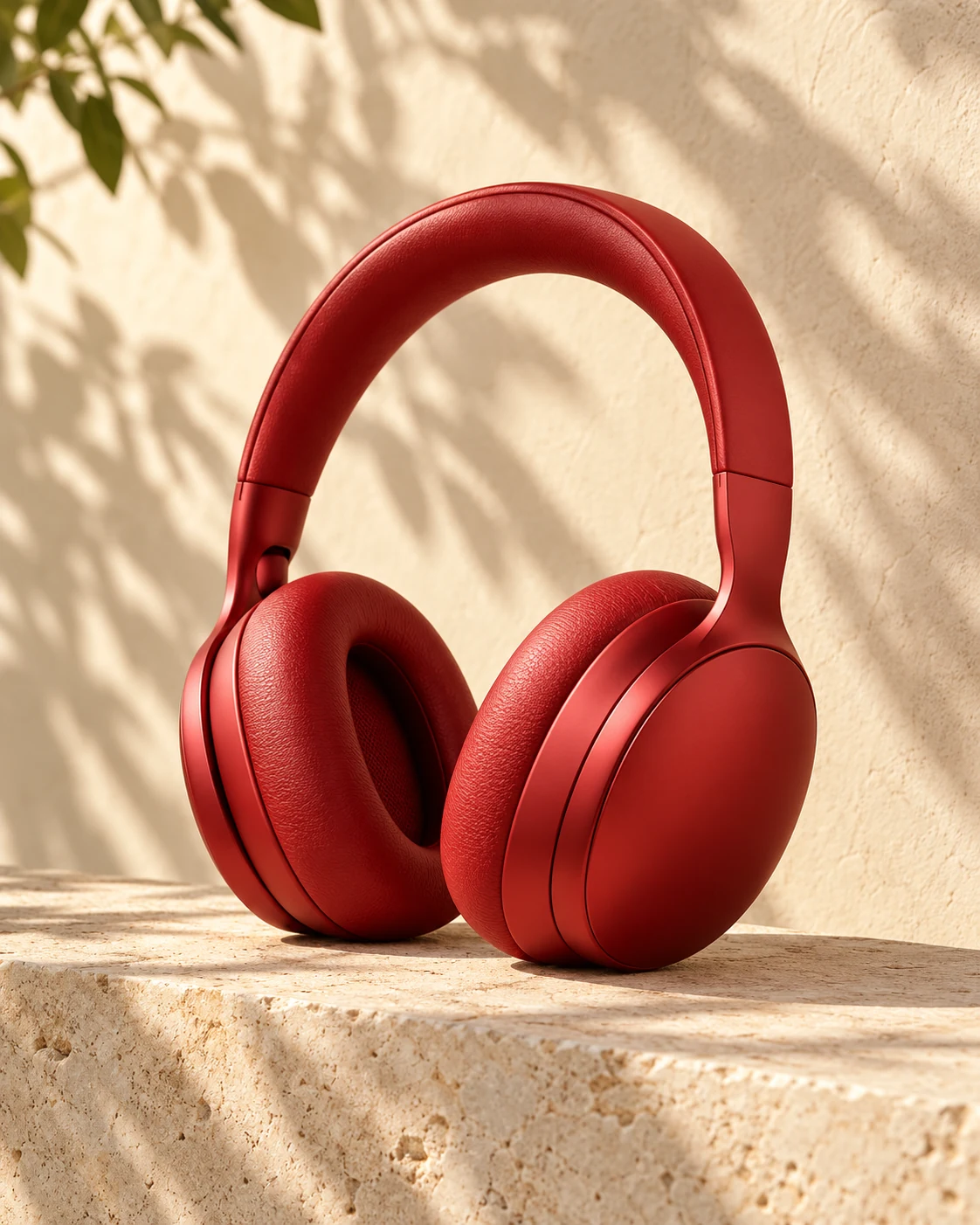
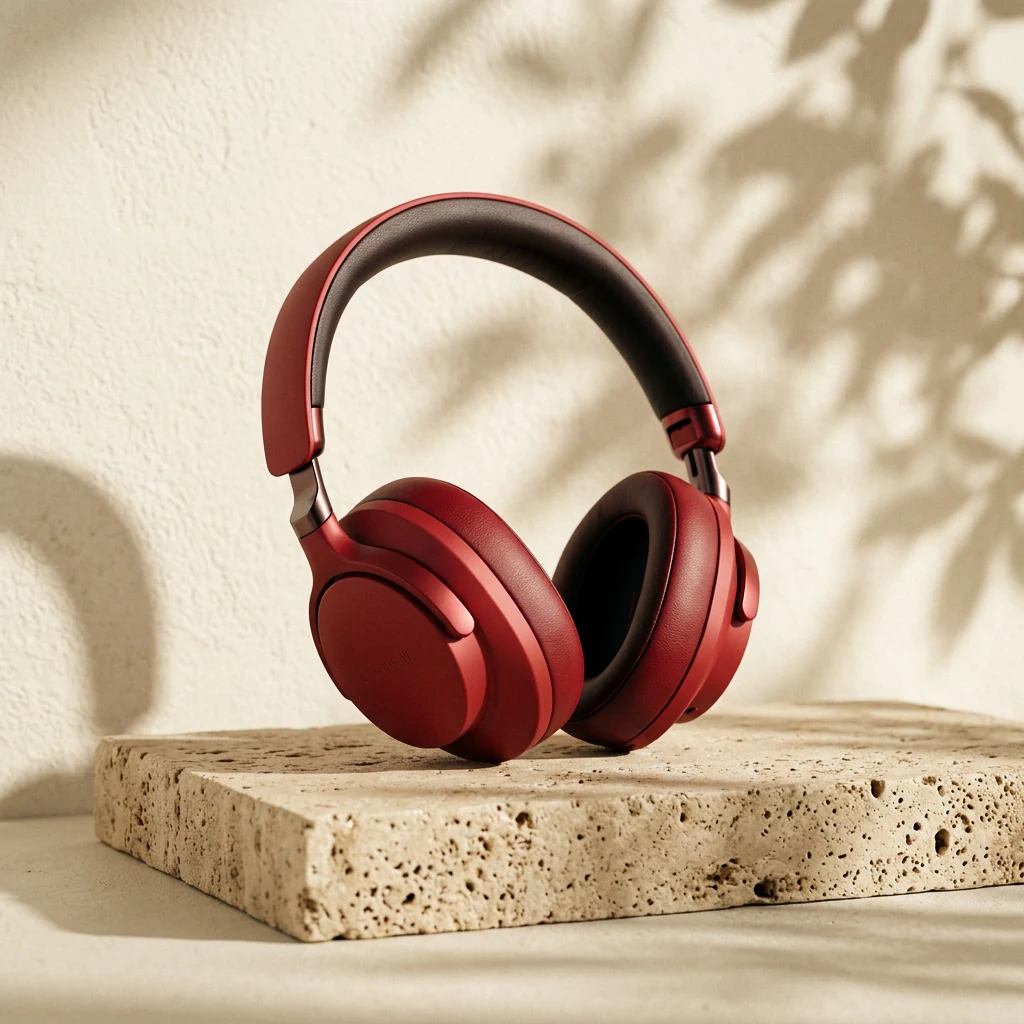
The extracted prompt gave us a much more useful brief:
Commercial product photography of minimalist matte red over-ear headphones resting on a rough travertine stone block. Warm afternoon sunlight with soft dappled tree leaf shadows against a textured cream stucco wall. Three-quarter eye-level angle, soft highlights, shallow depth of field, elegant and serene mood.
The result keeps the warm palette, stone texture and dappled light. The headphone shape and framing are different. That is a useful distinction: the prompt describes a look you can work with, rather than recovering the exact instructions behind the original image.
For your own product, try: “Keep the warm light, cream wall and stone surface. Replace the headphones with a matte green skincare bottle.” If the product’s exact appearance matters, attach a photo of it as a reference and check the result carefully.
Video to prompt: describe what happens over time
A video needs more than a description of one frame. In this coastal driving example, the appeal comes from a low camera following the car, the curve of the road, warm sunset light and the sense of forward motion.
Low-angle rear chase shot of a glossy red sports car driving along a winding coastal cliff highway at golden hour sunset. Warm sun flares, glistening ocean waves below, rugged mountain coastline, cinematic 35mm lens, smooth tracking motion with dynamic road blur.
You can see the shared direction: a rear view of a red car, a coastal road, warm light and a tracking camera. The road, car and framing are newly generated. If you want another take, give a focused follow-up such as “Keep the coastal drive and sunset. Switch the car to a vintage convertible.”
Rework a viral video style into your own idea
When a video catches your eye, pick the part you want to learn from. Is it a slow reveal? An overhead product shot? A sudden change of setting? A long clip can contain several different ideas, so start with one clear moment.
After extracting the prompt, try asking: “Explain what makes the opening shot visually interesting, then adapt it into a five-second reveal for my coffee brand.” Give it details about your product and the mood you want. That produces a more useful brief than simply asking for the same video.
This is useful for exploring an ad concept, planning a product launch, or trying a new direction for a social post. The visual style is only one part of a successful video; your message, pacing and audience still matter.
Get a better result with a clearer reference
- Use a clear image. Pick one where the subject and lighting are easy to see. A tiny screenshot gives the extractor less to work with.
- Choose a focused clip. A short, coherent shot is easier to describe and recreate than a montage with many cuts.
- Say what should stay. “Keep the camera angle and soft light” is more helpful than “make it similar.”
- Change one thing first. Try the colour or setting before changing the subject, camera, lighting and motion together.
Prompt extraction also works as a brief for a photographer, designer or editor. You do not have to generate anything. Sometimes a clear description of the light and composition is the thing you needed.
If you want to change existing footage rather than generate a fresh shot, read our AI VFX and video restyling guide for a different approach to working from a source video.
Common questions
Can I turn both images and videos into prompts?
Yes. Prompt Extractor describes the subject, composition, lighting and visual style of an image. With a video, it also examines camera movement, motion and atmosphere. Upload your own media, choose an existing asset, or start with an example.
Does it find the exact prompt used to make an image?
No. It writes a new prompt based on what is visible in the reference. It cannot recover the original prompt or hidden settings, and a new generation will not be an identical copy.
Can I recreate the look of a viral video?
You can use a video reference to describe its camera movement, lighting, subject and visual style, then adapt that description into a new video. Focus on one clear shot or visual idea first. A prompt alone does not reproduce a full edit or guarantee the same audience response.
Do I have to generate something after extracting a prompt?
No. You can use the description as a creative brief or keep refining it. If you want to generate in Creativly, ask for an image or video plan, review the prompt and available settings, then approve the generation. Generations use credits.
Have a reference in mind? Start with that, or try one of the examples to see the full process.
Try Prompt Extractor