
GPT Image 2.5 is now available in Creativly for text-to-image generation and reference-based image editing. Start with a campaign idea, a product photograph, or an unfinished concept, then shape it in an Image session, Flow, or Agent.
What can you make with GPT Image 2.5?
Think beyond a single impressive picture. Build a product launch around one visual direction: a wide website image, a portrait social post, and a square campaign concept. Or take an existing photograph and describe a specific revision—new wardrobe, a different setting, warmer lighting, or a cleaner background.
The useful distinction is simple: generate when you are starting from words; edit when an image already contains something you want to keep. You can use either approach without leaving your project.
Text-to-image: turn a brief into a campaign visual
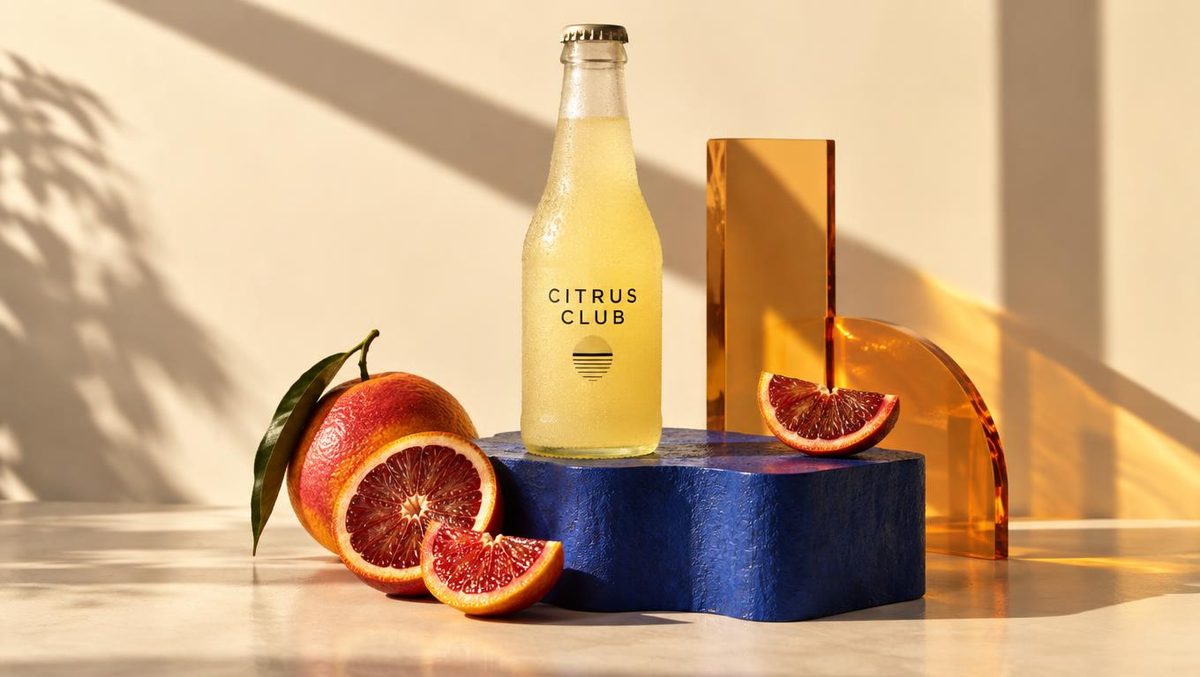
A good prompt gives the model a job, not just a style. Describe the subject, where it sits, the light, the composition, and the intended placement. Put any exact wording in quotation marks. For this launch, we generated the citrus campaign below from a text prompt at the default quality and resolution.
Try a product campaign prompt
A wide editorial product photograph for a citrus soda campaign. A frosted pale-yellow bottle on a cobalt blue plinth, sliced blood oranges, translucent amber acrylic, and a warm cream studio background. Hard afternoon side light, long architectural shadows, realistic condensation. The minimal label reads “CITRUS CLUB”. No other text.
Review small lettering and product details before publishing. If a composition works but one element does not, use that result as the starting image for an edit instead of rewriting the whole scene.
Image editing: say what changes—and what stays
Attach your source image and give a focused instruction. “Make this more cinematic” leaves a lot undecided. “Keep the person, pose, and carriage unchanged; replace the coat with silver armour and a dark blue cloak” gives the edit a clear boundary.
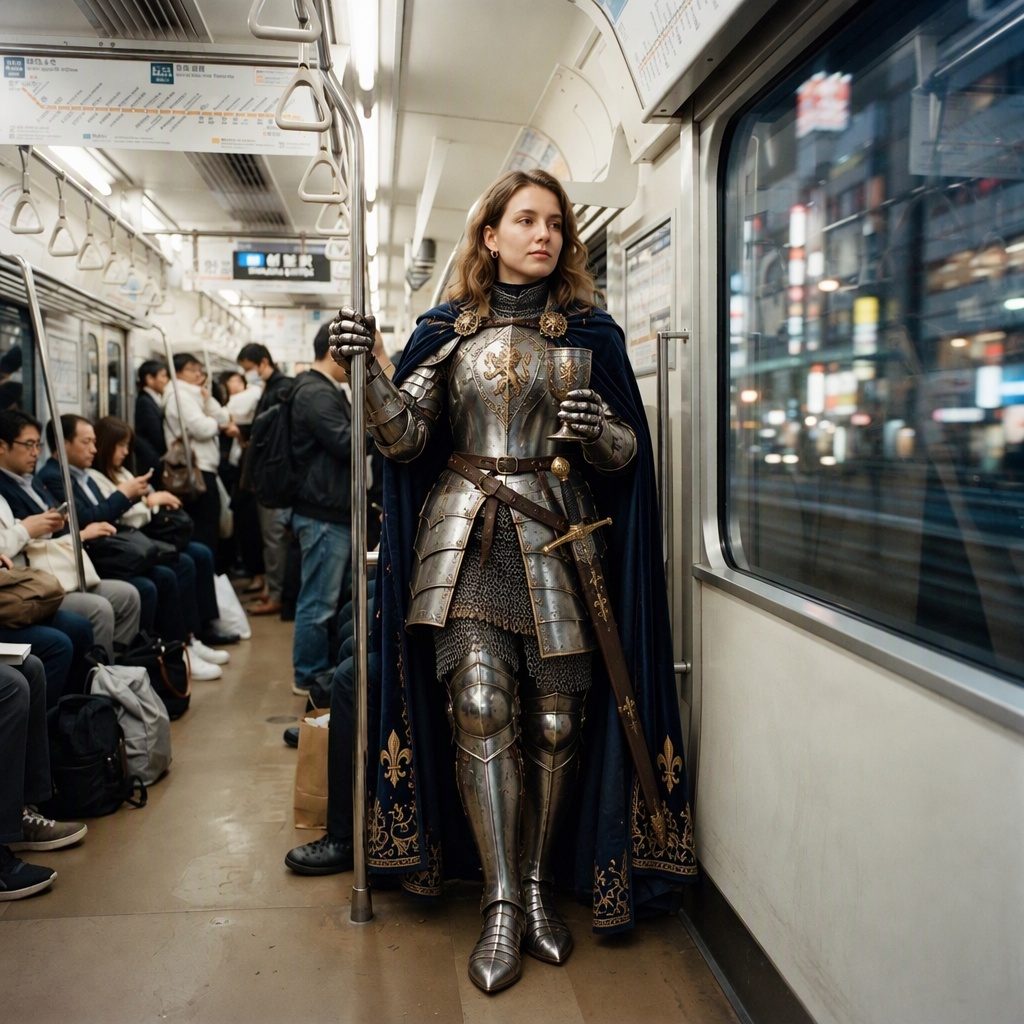
For multi-image editing, attach the references you need and explain each role: the first image supplies the product, the second supplies the setting, and the third supplies the colour direction. GPT Image 2.5 supports up to 16 input images. Fewer, well-chosen references are usually easier to direct than an unexplained pile of images.
Try a reference-based edit
Use the bottle in image one as the product. Keep its silhouette, cap, and label wording. Place it in a scene inspired by image two, using image three only for the colour palette. Leave clear space on the left for a headline. Do not add new text.
Quality, resolution, and formats
Start with Medium quality at 1K. The model also supports 2K and 4K output, five quality levels from Low through Max, and PNG, JPEG, or WebP. Higher quality and larger output cost more; choose them when the extra detail matters to the final placement.
Fifteen supported aspect ratios cover square, portrait, landscape, and panoramic compositions. Pick the layout before generating rather than relying on a severe crop later. For edits, leaving the aspect ratio unspecified lets the model infer it from the source image.
How to use GPT Image 2.5 in Creativly
- Open an Image session and select GPT Image 2.5.
- Write a prompt to create an image, or attach source images and describe your edit.
- Choose the composition, check the displayed cost, and generate. Review the result in your session and keep refining it.
Prefer a reusable workflow? Choose GPT Image 2.5 on an image node in Flow and connect your prompt or references. Prefer conversation? Ask Agent to “use GPT Image 2.5 to create three product campaign concepts”, then direct the next edit in chat.
Use managed generation with the Platform plan, or connect your own WaveSpeed key. Gemini + BYOK credits cover managed Gemini models, not GPT Image 2.5; on that plan, use your WaveSpeed key for this model. See plans and pricing for access details.
GPT Image 2.5: common questions
Can I edit an image instead of generating a new one?
Yes. Attach a source image and describe the change. You can also combine multiple references, with instructions explaining what to borrow from each one.
Does it replace GPT Image 2 in my existing work?
No. GPT Image 2 remains available. Select GPT Image 2.5 when you want to try the new model; existing workflows keep their selected model.
Do I need Max quality for every image?
No. Begin with Medium to establish the idea. Increase quality or resolution when you need more detail, and check the cost before running.
Ready to make something? Try GPT Image 2.5 in an Image session, or explore the Creativly guides for references, sessions, and workflows.