


A sketch on your desk. A product photo that needs a new setting. A logo you want to see on something real. Creative Agent gives those starting points somewhere to go.
Today we’re introducing Creative Agent, a new app inside Creativly. You can talk through an idea, make images and videos, then keep working with the results in the same place. It’s a new way to work with the creative tools already here—not a new image model you need to learn.
Start with what you have
You don’t need a perfectly written brief. Attach a reference and ask for something useful. “Turn this sketch into a realistic product photo” is enough to start. When the result arrives, select it and tell the Agent what you would change next.
Here are three examples we made in Creative Agent using the short requests below. The references are original example artwork; the results came from the same workflow you can use in the app.
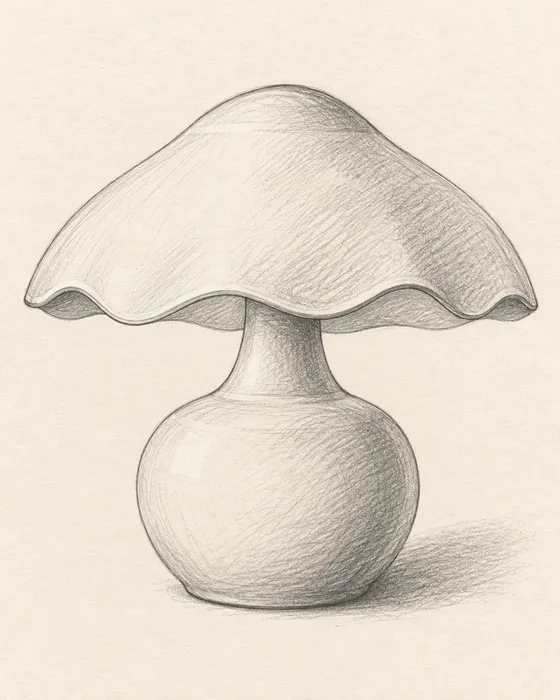 Reference
 Creative Agent result
 Reference
 Creative Agent result
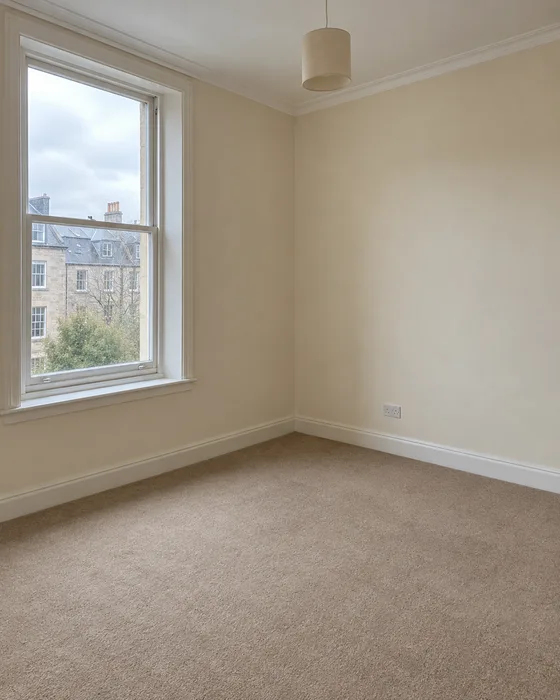 Reference
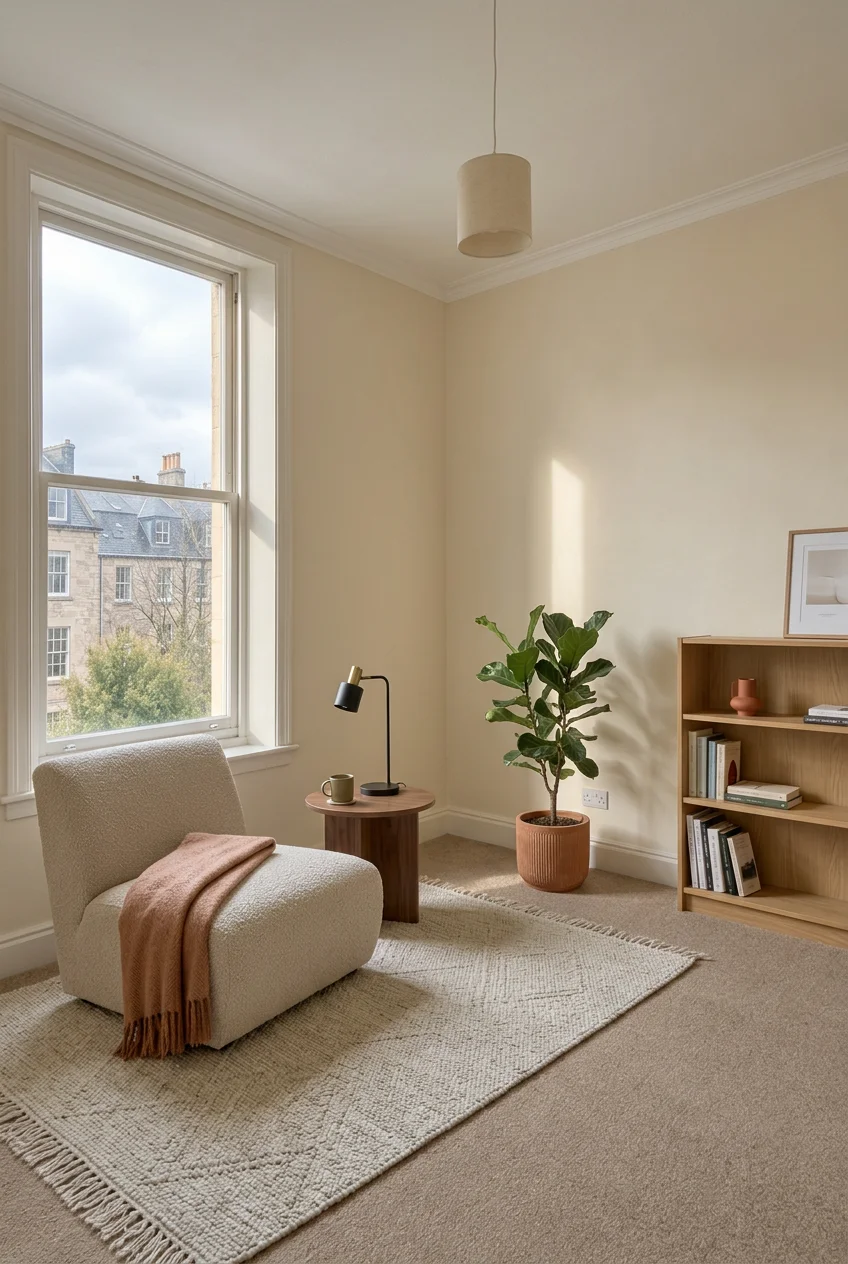 Creative Agent result
The bakery request made three separate mockups: a cup, a pastry bag and a branded card front. The cup above is one of them. It’s a useful way to explore a brand in context—not a finished loyalty-card layout or a guarantee of pixel-perfect lettering.
Different starting points. Real results.
We also tried a plain coffee pouch, a character illustration and a portrait. These are the actual outputs from those short requests in the app, not concept art made separately for this announcement.
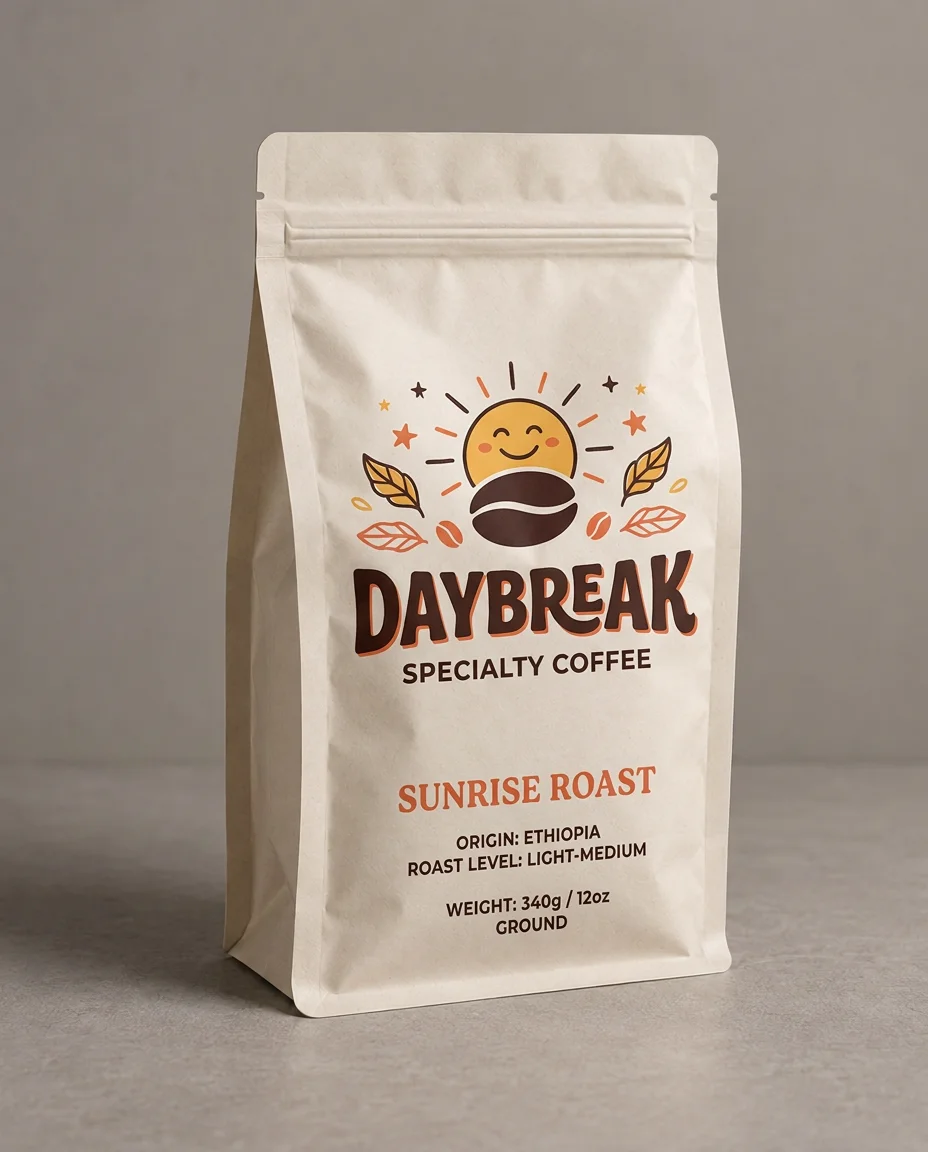
A shelf-ready direction

“Design playful packaging for a specialty coffee brand called “Daybreak” using this pouch.”
Packaging concept. Check any invented origin, weight or product details before using it.

A character with somewhere to go

“Put this character in a storybook scene delivering a letter to a tiny house in the forest.”
A new storybook scene from the supplied character reference.
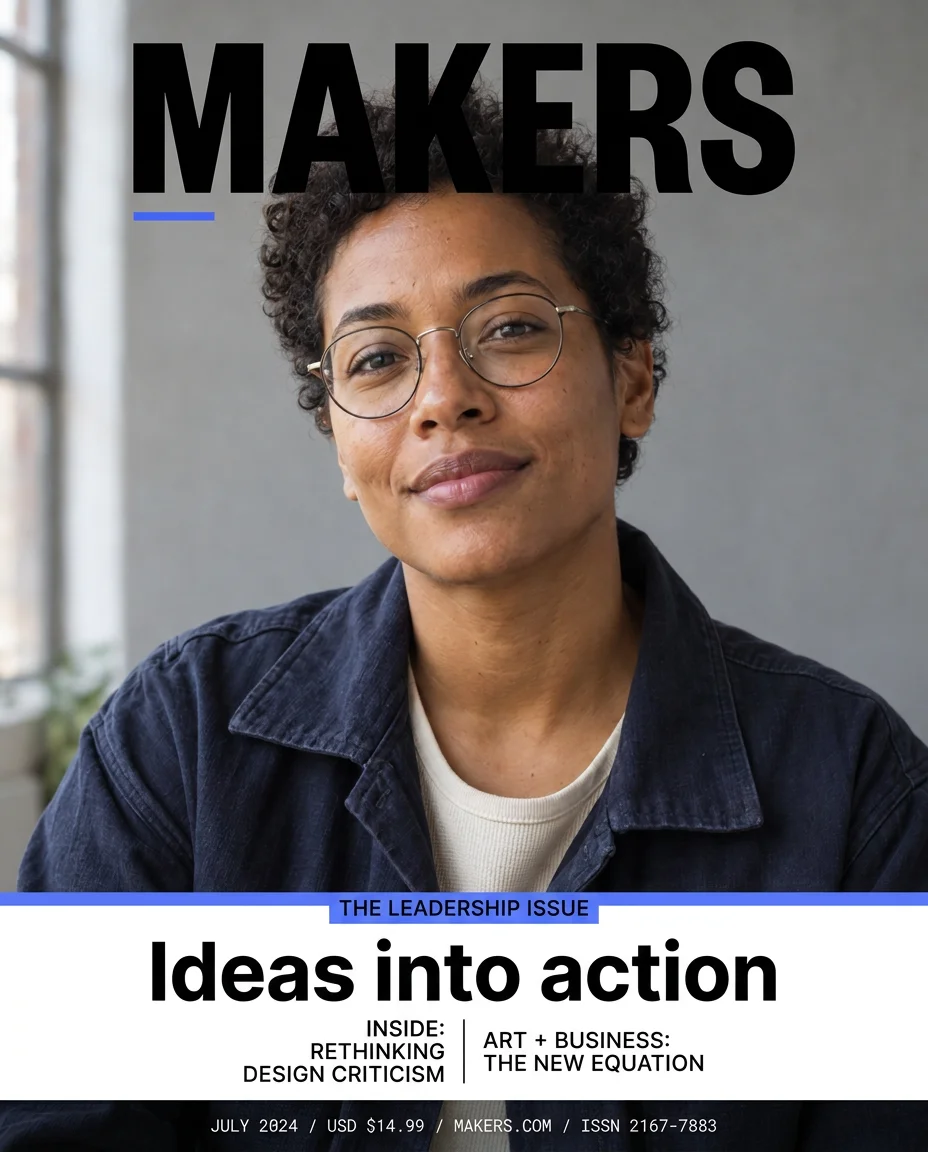
An editorial cover concept

“Turn this portrait into the cover of a creative magazine called “MAKERS”, with the headline “Ideas into action”.”
Cover concept. The model added issue details and secondary cover lines; these need editorial review.
These are starting points, not promises of a final production file. Check lettering, product details and any extra facts an image adds before you publish. A logo concept is still a raster image; a packaging mockup isn’t a print-ready dieline. The useful part is getting something concrete you can judge and refine.
One workspace, a few ways to see it
Assets is the live view of what you’re making. New results arrive as they finish. Select an image, use it as a reference, open its details, or bring it back into the conversation.
Canvas gives you room to arrange the same work. Put a product shot beside a direction you like, keep a Markdown brief nearby, or add a sticky note for the next round. You aren’t moving files between separate libraries.
Image / Video keeps the familiar creation controls close by. When you know the prompt and settings you want, generate directly. Those results belong to the same workspace too. You can use the Agent and the direct prompt bar side by side; a manual generation doesn’t have to become a chat message.
Keep the good parts and change the rest
The next instruction can be simple: move the product into a different setting, try a warmer palette, or bring a still image into motion. Select the asset you mean so the reference is clear. Use Luna or Flash for the conversation, and browse the skills menu when you want a more focused way to approach a task.
Work already running continues when you close the browser. Come back to your saved conversation and results. For a longer idea, take it one useful step at a time and review what you have before asking for the next change.
Not sure what to try first?
New workspaces offer a small library of starting points: product campaigns, brand mockups, packaging, a room makeover, a sketch brought to life and more. Browse four at a time with More ideas, choose one, and make the request your own. Nothing runs until you send it. The cards step out of the way after your first request.
You can explore a public example before starting. It’s an interactive preview of the workspace, with a real example conversation and assets—not a live generation session. To make your own work, open Creative Agent from the app sidebar.
Your existing Image, Video, Flow and Agent work is still where you left it. Creative Agent is a new place to start the next idea.