
I make a few product demos a month. I wanted a simple way to record something, tidy it up and share it, so I rebuilt the screen recorder that had been sitting inside Creativly.
You can record your screen and camera, cut the parts you don’t need, choose a layout, and add captions. You can also start with a video you already recorded elsewhere. It’s free, works without an account, and processes your recordings on your own device.
A quick look at what you can make
Here’s a short tour of the editor, from changing the framing to working with the transcript and downloading a finished video. You can try the built-in example yourself before recording anything.
What is it useful for?
Start with something you need to explain. A single feature, a few steps, or an answer to someone’s question is usually enough for a useful video.
Show a product or a new feature
Walk through one useful task, explain what changed, and give people a video they can watch before trying it themselves.
Teach someone how to do something
Keep the steps on screen and your explanation alongside them. Useful for tutorials, onboarding and short lessons.
Send feedback with context
Show the bug, confusing page or design change you mean. A short recording can save a long exchange of messages.
Give existing footage a new use
Bring in a recording you already have. Trim a conversation, pair it with a screen video, or make a captioned excerpt to share.
Record a new take, or bring your own videos
Open the recorder and choose the screen, window or browser tab you want to show. Add your camera and microphone if you want to talk through it. Screen-only recordings work too. Available audio-sharing options depend on your browser and what you choose to capture.
Already have footage? Choose Upload video. A clip can have both a screen video and a separate camera video, so you can combine recordings made with different tools. The camera area can also use an avatar video or a still image. Use Add clip when you want to upload another section or record the next take.
For a product demo, try recording one task from start to finish. Leave a small pause before and after it. That gives you room to trim without cutting into your first or last word.
Change the framing after you record
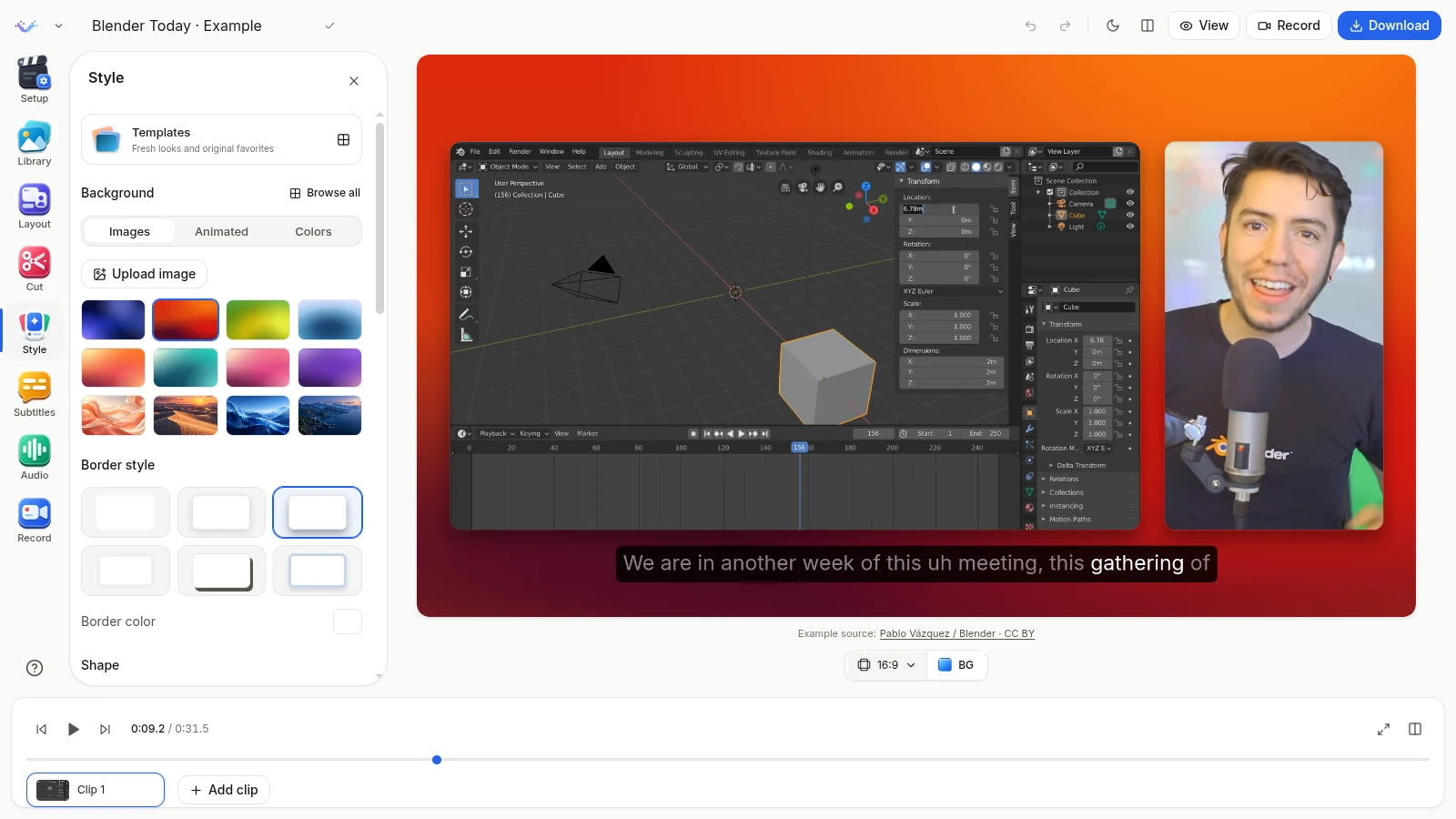
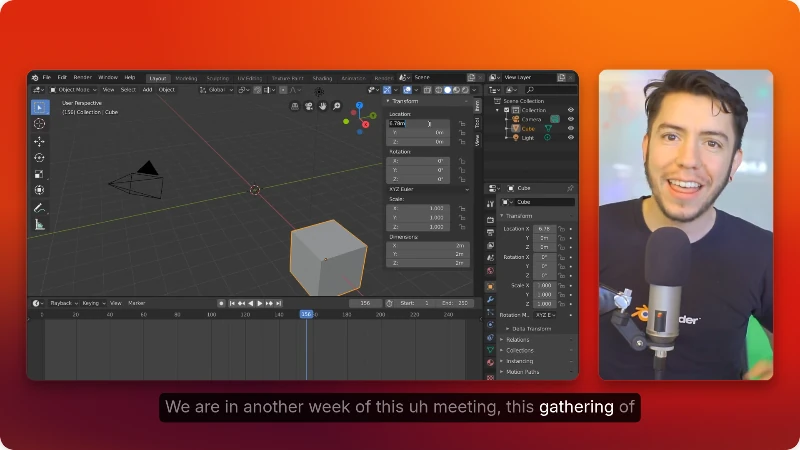
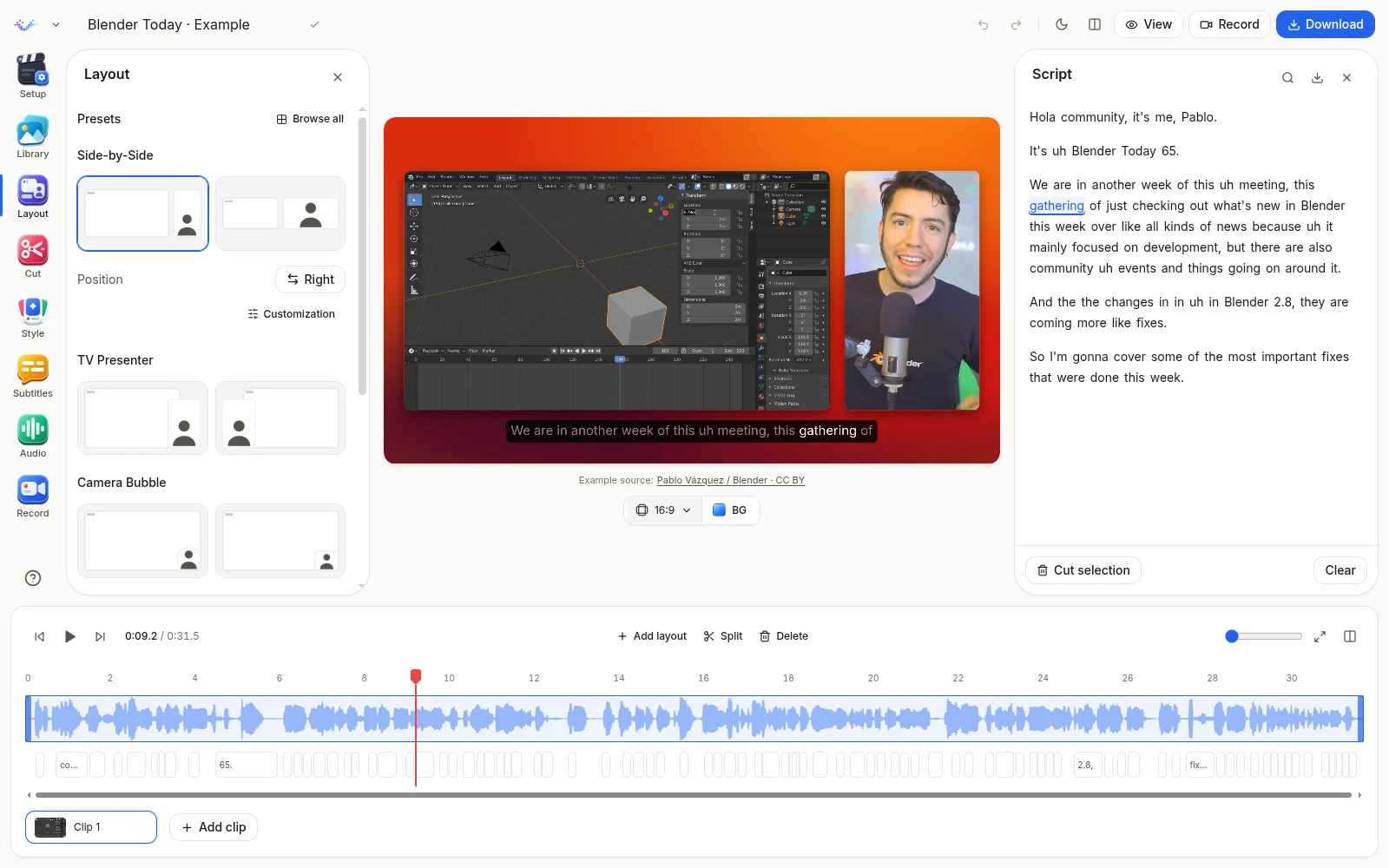
Your screen and camera don’t have to stay in the same arrangement. Put them side by side while you explain something, make the screen larger for a detailed step, or use a small camera bubble when the demonstration needs most of the space. You can switch layouts during a clip too.
Start with a preset in Layout, then drag and resize the frames if you need a different balance. Choose a wide, vertical or square video depending on where you plan to use it. Check that the important buttons, text and faces still fit after changing the shape.
Give it a look that fits
The Style tab has background colours, gradients, images and templates to start from. You can upload your own background, adjust the spacing and corners, and choose a shadow or window frame. A plain background and a little breathing room can be plenty for a tutorial.
If you’re making a series of updates, use the same background and framing across them. It gives the videos a consistent look without having to make each one from scratch.
Trim by time, or cut by the words
Use the timeline to trim a clip’s start and end, split it, or remove a section. For spoken videos, open the transcript to find the moment you mean. Click a word to jump there. To select a passage, click its first word, Shift-click its last word, then choose Cut selection to remove that part of the video.
You can correct the transcript by double-clicking a word. Check names, product terms and anything you want viewers to read accurately. Those corrections change the text; they don’t change what was spoken in the original audio.
Add captions people can follow
Open Subtitles to generate a transcript and choose a caption style. Backdrop keeps the words on a dark background. Spotlight and Midnight offer different colours with an active-word highlight. Adjust the size and position so the captions are readable without covering the part you’re demonstrating.
Transcription runs on your device. You can choose Whistle, a small download of about 17 MB, or Phonon-2.5, which supports 25 languages with automatic language detection. Whisper Tiny is available as a fallback. The first time you use a model, the app needs to download it; processing time depends on your computer and the length of the video.
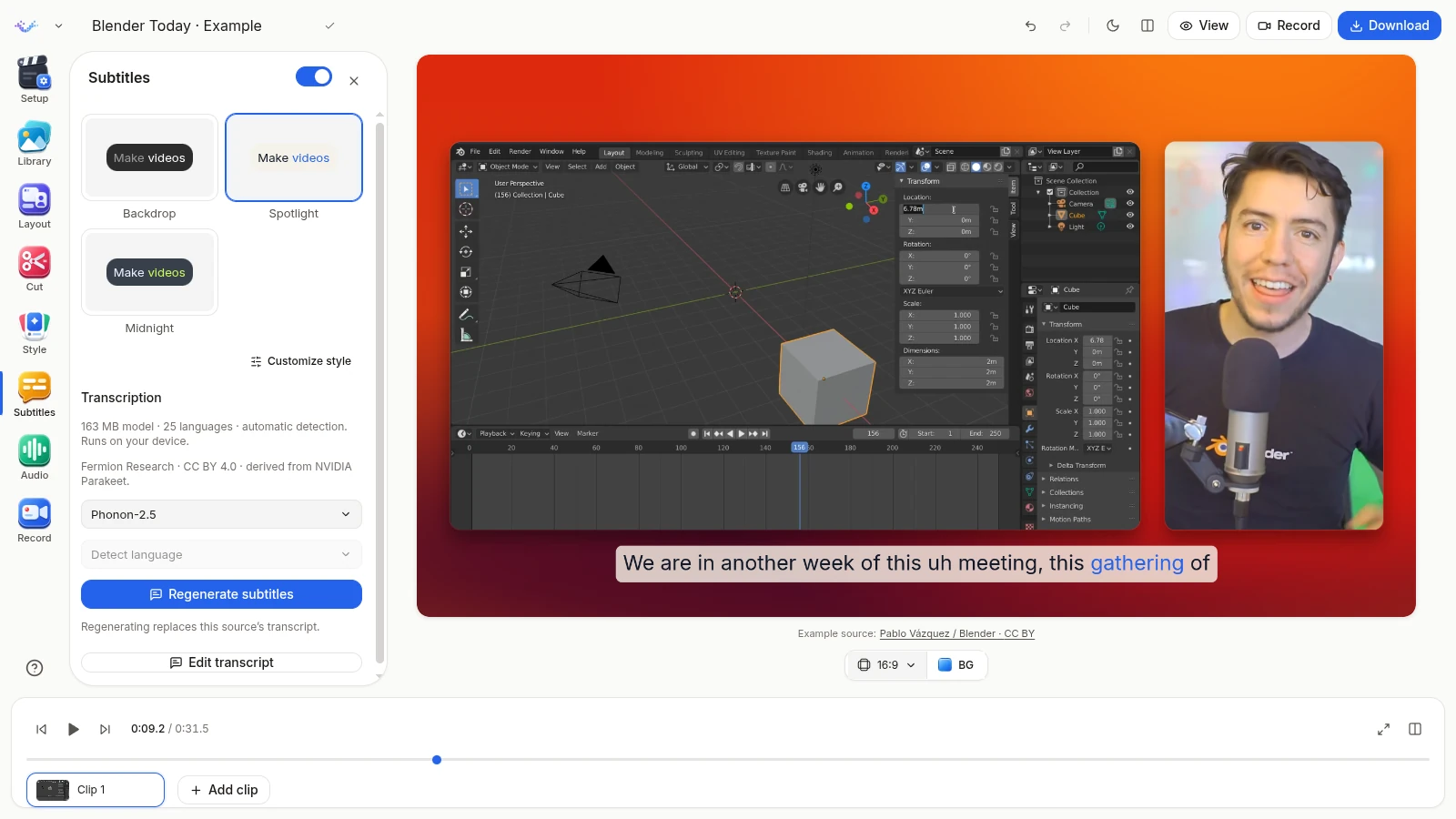
The captions can be included in your exported video. You can also download an SRT subtitle file from the transcript panel if you need a separate caption track elsewhere.
Your library stays on your device
Recording, editing, transcription and export happen locally in the browser. Your videos and audio aren’t uploaded for processing. Imported files are kept as originals; changing the layout or trimming a clip doesn’t replace them with a smaller preview file.
The library saves on this device in browser storage by default. You can choose a folder on your computer for saved media and project backups in a supported browser. Use the same browser and device to return to your local library, and download finished videos you want to keep. Clearing site data can remove work saved only in browser storage.
Download an MP4 and share it your way
Choose Download, then pick Source quality, Full HD or 4K. The editor combines your clips, layout, background and enabled captions into an MP4 you can upload to YouTube, add to a product page, or send directly to someone.
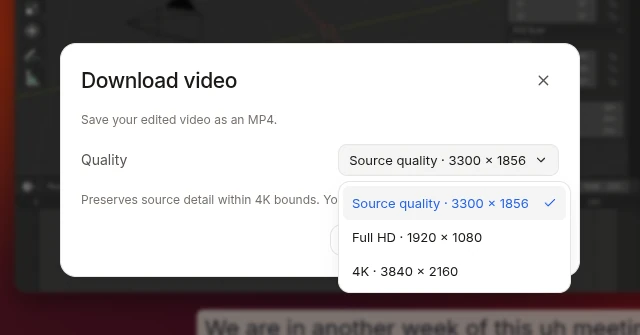
Use a high-resolution recording when small text needs to stay clear. A 4K export gives the composition more pixels, but it can’t recover detail that wasn’t captured in the original. Longer videos and larger exports also need more time and memory on your device.
Chrome or Edge is a good place to start for recording and folder access. Browser support for capture and video encoding varies; the app checks what your device can use.
A few common questions
Do I need a Creativly account or subscription?
No. The screen recorder is free to use without an account. You can record, edit, transcribe and download your video directly in the browser.
Can I edit a video I recorded somewhere else?
Yes. Upload an existing video, then trim it, change its layout, and add captions. You can also attach separate screen and camera videos to the same clip, or use an image as an avatar.
Are my recordings uploaded for transcription?
No. Transcription runs on your device. The app downloads the speech model you choose, then processes your audio locally. Recording, editing and MP4 export also run in your browser.
Where is my library saved?
Your library is saved on your device in browser storage. In a supported browser, you can choose a folder for saved media and project backups. Download finished videos you want to keep; clearing site data can remove a library kept only in browser storage.
Can I export in 4K?
Yes. The download options include Source quality, Full HD and 4K, within the output limits of your browser and device. Use high-resolution source footage when you need fine detail; a larger export cannot restore detail missing from the original.
If you have something you’ve been meaning to explain, give it a try. Open a new recording, or bring in a video you already have and see what you can make from it.
Try Creativly’s free screen recorder →
Example footage: FIXES GALORE — Blender Today Live #65, by Pablo Vázquez / Blender, licensed CC BY. Excerpts were trimmed, reframed and transcoded for the built-in example and shown here inside Creativly. No endorsement implied.